What Is Time-Shift in IPTV Streaming?
Time-shift lets you pause, rewind, and fast-forward live TV in IPTV. Learn how it works, which apps support it, and how it differs from DVR.
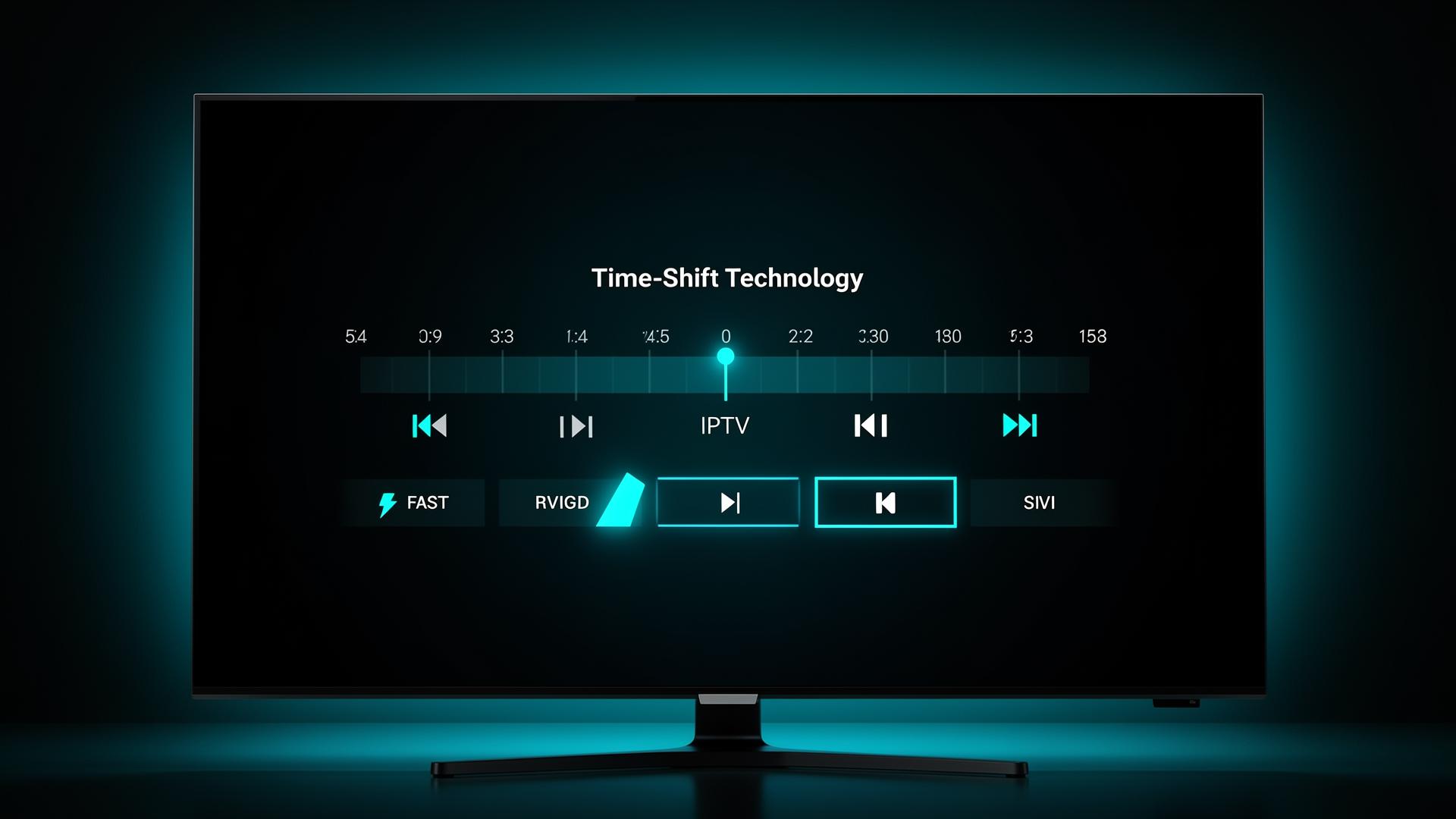
Time-shift in IPTV lets you pause, rewind, and fast-forward live TV. It records the live stream in the background so you never miss a moment. Think of it like a built-in DVR that works automatically without any setup.
💡 Key Takeaways
- Time-shift lets you pause and rewind live TV in real time.
- It works by buffering the live stream on the provider's server.
- Most IPTV apps support time-shift if the provider enables it.
- Time-shift differs from catch-up TV and DVR recording.
- Not all providers or channels support this feature.
📌 Disclaimer
What Is Time-Shift in IPTV?
Time-shift is a feature that lets you control live TV as if it were a recorded video. You can pause a live match to grab a snack. You can rewind to replay a goal. You can fast-forward through commercials if the buffer allows it.
The feature works by continuously recording the live broadcast on the provider's server or locally on your device. When you press pause, the recording continues. When you press play, you pick up where you left off while the live stream keeps going in the background.
Time-shift is especially popular with sports fans and viewers who watch live news. It removes the pressure of watching everything in real time. Many of the best IPTV providers in 2026 include this feature in their standard plans.
How Does Time-Shift Work?
Time-shift works by creating a temporary buffer of the live stream. This buffer can be stored on the provider's server (server-side) or on your device (client-side). Here is how each method works:
Server-Side Time-Shift
The IPTV provider records the live stream on their servers. When you rewind, your app requests the buffered content from the server. This is the most common method because it does not use your device's storage.
Client-Side Time-Shift
Some apps buffer the stream locally on your device. This uses your device's RAM or storage. It works without provider support, but the buffer is usually shorter (15-30 minutes).
The buffer duration varies by provider. Some offer 1-2 hours of time-shift buffer. Others may offer up to 24 hours. Once the buffer expires, the oldest content is deleted to make room for new content.
💡 How It Differs from Regular Streaming
Time-Shift vs DVR vs Catch-Up
Time-shift, DVR, and catch-up TV are related but different features. Understanding the differences helps you pick the right provider and app.
| Feature | Time-Shift | DVR Recording | Catch-Up TV |
|---|---|---|---|
What it does | Pause/rewind live TV | Records shows for later | Replay past programs |
When to use | During live viewing | Schedule ahead of time | After the show aired |
Storage needed | Server or minimal | Local or cloud | Server only |
Buffer duration | 1-24 hours | Unlimited (until deleted) | 1-7 days |
User action needed | None (automatic) | Must schedule recording | Browse and select |
Best for | Live sports, news | Planned recording | Missed shows |
For a deeper look at catch-up features, read our complete catch-up TV guide. If you want to understand on-demand content, see our VOD in IPTV guide.
Apps That Support Time-Shift
Not every IPTV player supports time-shift. The feature must be supported by both the app and the IPTV provider. Here are the top apps with time-shift support:
- TiviMate — Full time-shift support with adjustable buffer. Best for Firestick users.
- IPTV Smarters Pro — Supports time-shift when the provider enables it. See our Smarters Pro vs Lite comparison.
- OTT Navigator — Advanced time-shift with local buffering. See our OTT Navigator review.
- Perfect Player — Basic time-shift on Android. See Perfect Player vs VLC.
- VLC Media Player — Limited time-shift via local recording on Windows and Linux.
How to Use Time-Shift
Using time-shift is straightforward. If your provider and app both support it, the controls appear automatically during live TV playback.
On TiviMate
- Open any live channel.
- Press the OK/Select button to show controls.
- Use the left arrow to rewind and right arrow to fast-forward.
- Press play/pause to pause the live stream.
On IPTV Smarters
- Start playing any live channel.
- Tap the screen to show the playback bar.
- Drag the progress bar backward to rewind.
- Tap the pause icon to freeze the stream.
On OTT Navigator
- Go to Settings → Playback → Time-Shift.
- Enable time-shift and set the buffer duration.
- During live playback, use the on-screen controls to pause, rewind, or skip.
💡 Pro Tip
Pros and Cons
Time-shift adds flexibility to live TV, but it has some limitations.
✅ Advantages
- Pause live TV and resume whenever you want
- Replay key moments like goals or breaking news
- No need to schedule recordings in advance
- Works automatically — no setup required
- Available on most modern IPTV apps
⚠️ Limitations
- Not all providers support time-shift
- Buffer duration is limited (1-24 hours)
- May cause slight delay on slower connections
- Some channels disable time-shift due to licensing
Common Issues and Fixes
Time-shift can sometimes cause issues. Here are the most common problems and how to fix them.
- Time-shift button is grayed out: The provider does not support time-shift on this channel. Try a different channel or ask your provider.
- Rewinding causes buffering: Your internet speed is too slow. Time-shift needs the same bandwidth as live streaming. Check your speed and try lowering quality.
- Buffer resets when changing channels: This is normal. The buffer is channel-specific. Switching channels starts a new buffer.
- Time-shift stops after a few minutes: The buffer may be set too short. In TiviMate, go to Settings → Playback and increase the buffer size.
- Audio out of sync after rewinding: Stop and restart the channel. This resets the audio-video sync.
Find Providers That Support Time-Shift
Browse our reviewed IPTV providers to find ones with full time-shift support.
Compare Top ProvidersFrequently Asked Questions
Find the Right IPTV Provider
Our expert team has reviewed and ranked the top 20 IPTV services for 2026. Compare features, pricing, and performance to make an informed decision.
Independent reviews • Updated for 2026
Written by
IPTV Reviews Team
Our team of streaming experts is dedicated to helping you find the best IPTV solutions. With years of experience in the industry, we provide in-depth guides, reviews, and tutorials.
You Might Also Like
Catch-Up TV Feature: How Does It Work in IPTV?
Catch-Up TV lets you rewatch programs after they air. Learn how it works, which devices support it, and how it differs from DVR.
What Is VOD in IPTV? Video on Demand Guide
VOD lets you watch movies and shows on your schedule. Learn how Video on Demand works in IPTV and what to look for.
Best IPTV Service Providers (2026) — Top 20 Tested
Discover the top 20 IPTV providers in 2026. Compare features, pricing, and channels. Find the perfect streaming service for your needs. Updated reviews.