IPTV Bitrate Explained: Quality Settings Guide
Bitrate determines IPTV stream quality. Learn recommended bitrates for SD, HD, and 4K, internet speed requirements, and how to optimize settings.
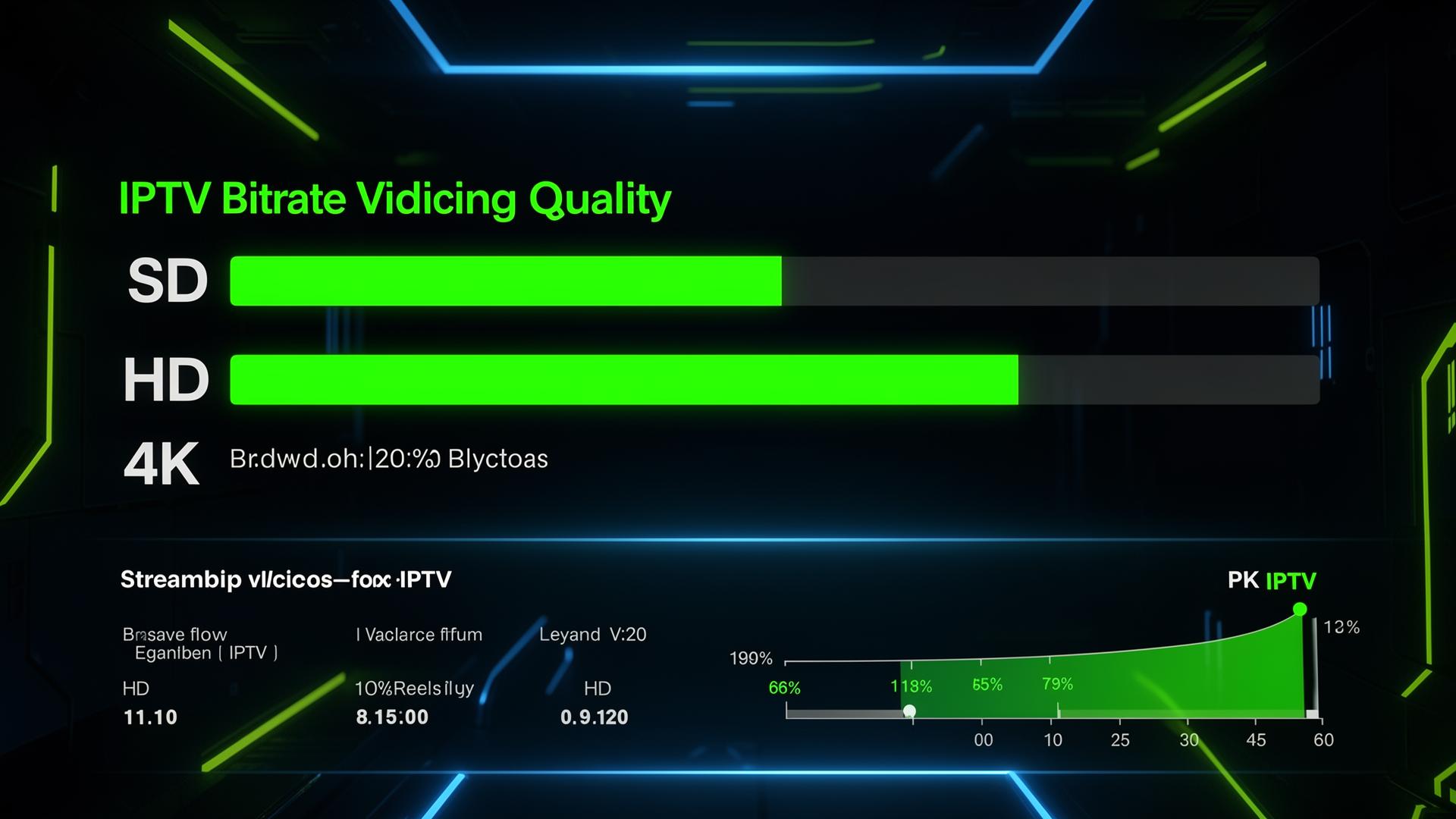
Bitrate determines the quality of your IPTV stream. A higher bitrate means better picture and sound. A lower bitrate saves bandwidth but reduces quality. Understanding bitrate helps you get the best viewing experience for your internet speed.
💡 Key Takeaways
- Bitrate is measured in Mbps (megabits per second) or Kbps (kilobits per second).
- Higher bitrate = better quality but more bandwidth used.
- SD streams need 1-3 Mbps. HD needs 5-8 Mbps. 4K needs 15-25 Mbps.
- Your internet speed must be higher than the stream bitrate.
- Buffering often means your internet is slower than the bitrate requires.
📌 Disclaimer
What Is Bitrate?
Bitrate is the amount of data transferred per second in a video stream. It is measured in bits per second. The more data sent each second, the more detail the video can show.
Think of bitrate like a water pipe. A wider pipe (higher bitrate) lets more water (data) flow through. This means smoother, sharper video. A narrow pipe (lower bitrate) limits the flow. This causes blurry images and pixelation.
There are two types of bitrate encoding used in IPTV:
- CBR (Constant Bitrate): The stream uses the same bitrate throughout. Simple scenes and complex scenes get the same data. This is predictable but can waste bandwidth.
- VBR (Variable Bitrate): The stream adjusts bitrate based on content complexity. Fast action scenes get more data. Static scenes use less. This is more efficient.
Most leading IPTV providers use VBR encoding because it delivers better quality at lower average bandwidth.
How Bitrate Affects Quality
Bitrate directly controls picture sharpness, color accuracy, and motion smoothness. Here is what happens at different bitrate levels:
- Very low (below 1 Mbps): Extremely blurry. Lots of pixelation. Audio may distort. Only suitable for audio-only streams.
- Low (1-3 Mbps): Standard definition (SD) quality. Acceptable for small screens like phones. Noticeable blur on large TVs.
- Medium (5-8 Mbps): High definition (720p-1080p). Good for most viewers. Sharp on screens up to 50 inches.
- High (10-15 Mbps): Full HD (1080p) with excellent detail. Great for large screens and sports content.
- Very high (15-25 Mbps): 4K Ultra HD. Crisp detail, vivid colors, and smooth motion. Requires a fast internet connection.
💡 Sports Viewers Take Note
Recommended Bitrates by Resolution
Each resolution has a sweet spot for bitrate. Too low and the image degrades. Too high and you waste bandwidth without visible improvement.
| Setting | SD (480p) | HD (720p) | Full HD (1080p) | 4K (2160p) |
|---|---|---|---|---|
Video Bitrate | 1-2 Mbps | 3-5 Mbps | 5-10 Mbps | 15-25 Mbps |
Audio Bitrate | 64-128 Kbps | 128-192 Kbps | 192-320 Kbps | 320-640 Kbps |
Min Internet Speed | 3 Mbps | 10 Mbps | 15 Mbps | 35 Mbps |
Data per Hour | ~0.7 GB | ~1.5 GB | ~3 GB | ~7 GB |
Best For | Phones | Tablets | TVs up to 55" | Large 4K TVs |
Keep in mind that these are approximate values. Actual bitrates vary by provider and encoding method. H.265 (HEVC) encoding delivers the same quality at about half the bitrate of H.264. Many modern providers use H.265 to save bandwidth.
Internet Speed Requirements
Your internet speed must be higher than the stream bitrate for smooth playback. A good rule is to have at least 1.5x the stream bitrate as your available download speed. This leaves room for network fluctuations.
Single Device Streaming
- SD streaming: 3-5 Mbps minimum
- HD streaming: 10-15 Mbps minimum
- 4K streaming: 35-50 Mbps minimum
Multiple Device Streaming (Multiroom)
If multiple people stream at the same time, multiply the per-stream requirement. For example, 3 HD streams need at least 30-45 Mbps. Learn more in our IPTV multiroom guide.
⚠️ Real Speed vs Advertised Speed
How to Check Your Stream Bitrate
Most IPTV apps show stream information including bitrate. Here is how to check it on popular apps:
TiviMate
- While watching a channel, press the OK button.
- Select the info icon or press the menu button.
- Look for "Video Bitrate" and "Audio Bitrate" in the stream details.
VLC Media Player
- Go to Tools → Codec Information (or press Ctrl+J).
- The "Statistics" tab shows real-time bitrate data.
IPTV Smarters Pro
- During playback, tap the screen to show controls.
- Look for a stream info or codec button.
- Bitrate is displayed alongside resolution and codec info.
For a full comparison of players, check our best free IPTV players guide or our TiviMate vs Smarters comparison.
Optimizing Quality Settings
You can adjust quality settings in most IPTV apps to match your internet speed. Here are practical tips for the best experience:
- Match quality to screen size: Use SD on phones, HD on tablets, and Full HD or 4K on TVs.
- Use hardware decoding: Enable hardware (HW) decoding in your app settings. This uses your device's GPU and reduces buffering.
- Choose H.265 when available: H.265 (HEVC) gives the same quality at half the bitrate. Most modern devices support it.
- Lower quality during peak hours: If your internet slows down in the evening, switch from HD to SD temporarily.
- Use Ethernet over Wi-Fi: Wired connections are more stable and provide consistent bandwidth.
- Set buffer size: In apps like TiviMate, increase the buffer to 2-5 seconds for smoother playback.
The right IPTV app for your device can make a big difference. Some apps handle bitrate changes better than others.
✅ High Bitrate Benefits
- Sharper image with more detail
- Smoother motion for sports and action
- Better color accuracy and contrast
- Less visible compression artifacts
⚠️ High Bitrate Downsides
- Uses more internet bandwidth
- Higher data usage per hour
- May cause buffering on slow connections
- Not noticeable on small screens
Common Bitrate Problems
Most IPTV streaming problems are related to bitrate and bandwidth. Here are the most common issues and how to fix them:
- Buffering every few seconds: Your internet speed is lower than the stream bitrate. Switch to a lower quality or use Ethernet.
- Pixelated or blurry image: The bitrate is too low for your screen size. Check if the channel offers HD quality.
- Good quality but stuttering: Network jitter is causing inconsistent data flow. Increase the buffer size in your app settings.
- Audio ahead of video: A bitrate mismatch between audio and video streams. Restart the channel or switch between HW and SW decoding.
- Quality drops during peak hours: Your ISP is throttling bandwidth. Try a VPN or contact your provider.
If you use an M3U playlist, make sure the stream URLs are pointing to the correct quality tier. Some playlists include separate entries for SD, HD, and 4K versions of the same channel.
Find High-Quality IPTV Providers
Compare providers that offer Full HD and 4K streams with optimal bitrate settings.
Browse Top ProvidersFrequently Asked Questions
Find the Right IPTV Provider
Our expert team has reviewed and ranked the top 20 IPTV services for 2026. Compare features, pricing, and performance to make an informed decision.
Independent reviews • Updated for 2026
Written by
IPTV Reviews Team
Our team of streaming experts is dedicated to helping you find the best IPTV solutions. With years of experience in the industry, we provide in-depth guides, reviews, and tutorials.
You Might Also Like
What is IPTV Service? Complete Guide 2026
Learn everything about IPTV services, how they work, and why they are the future of television streaming.
IPTV Multiroom: How to Watch on Multiple Devices
IPTV multiroom lets you stream on multiple devices at once. Learn how many connections you need, setup steps, and tips for the best experience.
Best IPTV Service Providers (2026) — Top 20 Tested
Discover the top 20 IPTV providers in 2026. Compare features, pricing, and channels. Find the perfect streaming service for your needs. Updated reviews.