IPTV on Xbox: How to Stream on Your Gaming Console
How to watch IPTV on Xbox One and Series X|S. Three methods covered: Edge browser, Microsoft Store apps, and Kodi. No modding required.
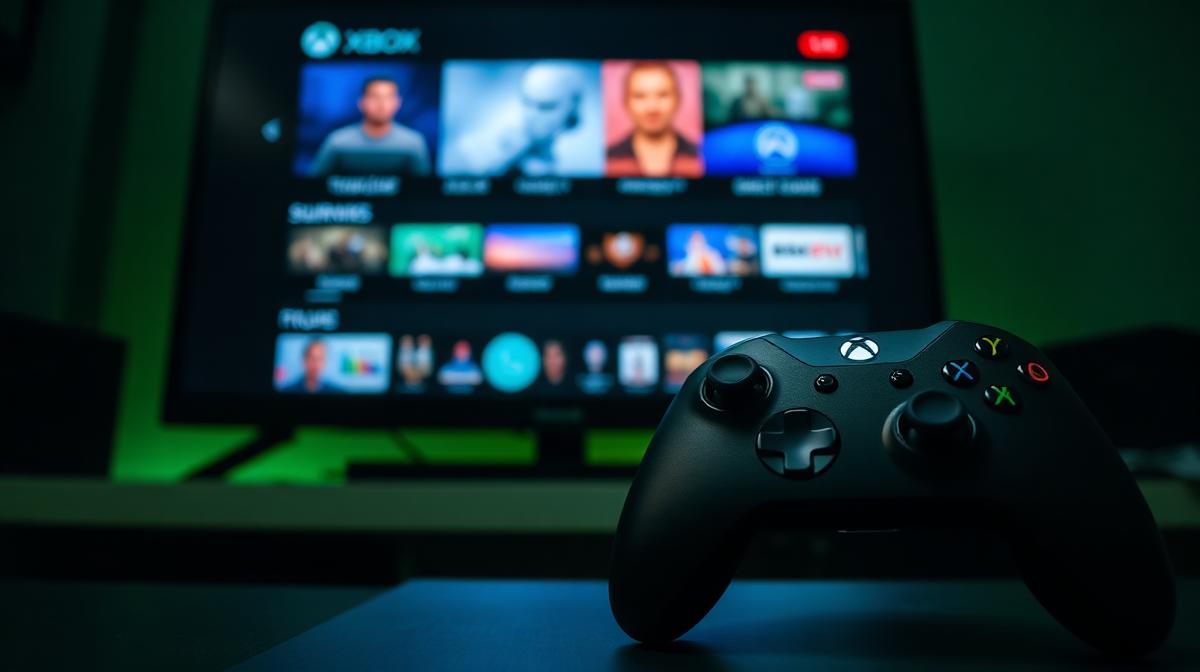
Yes, you can watch IPTV on your Xbox gaming console. Xbox One, Xbox Series S, and Xbox Series X all support IPTV through browser-based players, apps, and Kodi. This guide shows you three easy methods. New to streaming? Read our IPTV beginner's guide first.
🔑 Key Takeaways
- Xbox One and Series X|S both support IPTV streaming
- Three methods: Edge browser, Microsoft Store apps, and Kodi
- No jailbreaking or modding required
- Edge browser with a web player is the quickest method
- Kodi offers the best full-featured IPTV experience
📌 Disclaimer
Can You Watch IPTV on Xbox?
Yes. Xbox consoles can stream IPTV content. Since Xbox runs a modified version of Windows, it supports web browsers and media apps. This makes it a solid IPTV device — especially if you already own one.
Xbox doesn't have dedicated IPTV apps like a Firestick or Android TV. But the built-in Microsoft Edge browser and Kodi make it work well. You won't need to modify your console or void any warranty.
✅ Xbox IPTV Advantages
- No extra device needed — use your existing Xbox
- Supports 4K streaming on Series X
- Ethernet port for stable wired connections
- Kodi available in the Microsoft Store
- Switch between gaming and IPTV instantly
⚠️ Xbox IPTV Limitations
- Fewer dedicated IPTV apps than Firestick
- Controller navigation less ideal than a remote
- Console uses more power than a streaming stick
- Xbox must stay on while streaming
Xbox Models & IPTV Compatibility
All modern Xbox consoles support IPTV. Here's how each model compares for streaming.
| Feature | Xbox One | Xbox One X | Xbox Series S | Xbox Series X |
|---|---|---|---|---|
Max Resolution | 1080p | 4K | 1440p | 4K |
HDR Support | ||||
Ethernet | ||||
Wi-Fi | 5 GHz | 5 GHz | Wi-Fi 5 | Wi-Fi 5 |
Kodi Support | ||||
Edge Browser |
💡 Best Xbox for IPTV
Method 1: Microsoft Edge Browser (Fastest)
The Edge browser method is the quickest way to watch IPTV on Xbox. Many IPTV providers offer web-based players. You just open the URL in Edge and start watching. No app installation needed.
Open Microsoft Edge
Go to Your Provider's Web Player
Type your IPTV provider's web player URL in the address bar. Most top-rated IPTV services offer a browser-based player.
Log In
Start Watching
Browse channels and select what to watch. Press full screen for the best experience.
🎉 Done! You're streaming IPTV on your Xbox.
💡 Bookmark Your Player
Method 2: IPTV Apps from Microsoft Store
A few IPTV player apps are available in the Xbox Microsoft Store. While the selection is smaller than on Android, some solid options exist.
Open the Microsoft Store
Search for IPTV Apps
Search for these apps:
- myIPTV Player — supports M3U playlists and EPG
- IPTV Player — basic M3U playlist viewer
- Kodi — full media center with IPTV add-ons
Install and Configure
Install your chosen app. Open it and enter your M3U playlist URL from your IPTV provider.
Don't have a provider yet? Compare the best IPTV providers for 2026.
Add EPG (Optional)
Method 3: Kodi Media Player (Best Experience)
Kodi is the best option for a full IPTV experience on Xbox. It's free, available in the Microsoft Store, and supports PVR IPTV add-ons with EPG, catch-up, and channel organization.
Install Kodi from Microsoft Store
Install PVR IPTV Simple Client
Open Kodi. Go to Add-ons → Install from Repository → PVR Clients → PVR IPTV Simple Client. Install it.
Configure Your IPTV Source
Open PVR IPTV Simple Client settings:
- M3U Playlist URL: Enter your provider's M3U link
- EPG URL: Enter your provider's EPG link
- Logo Path: Set if your provider offers channel logos
Enable and Restart
Enable the PVR IPTV Simple Client add-on. Restart Kodi.
🎉 Your channels load! Browse them under TV → Channels.
🔥 Why Kodi Is Best for Xbox
Optimizing Your Xbox for IPTV
These settings improve your streaming experience. Apply them for smoother playback.
Network Settings
- Use wired Ethernet instead of Wi-Fi for stable streams
- Set DNS to 8.8.8.8 (primary) and 8.8.4.4 (secondary)
- Run a speed test: Settings → Network → Network Speed & Statistics
- You need at least 25 Mbps for HD, 50 Mbps for 4K
Display Settings
- Set resolution to match your TV: Settings → Display & Sound → Video Output
- Enable HDR if your TV supports it
- Turn off Auto HDR for better color accuracy in video playback
Power Settings
- Change to Instant-on mode to resume streaming quickly
- Disable auto-shutdown while streaming: Settings → Power → Turn off after
For more device setup guides, check our tutorials for Samsung Smart TV, Roku, and Apple TV.
Troubleshooting Common Issues
Here are fixes for the most common Xbox IPTV problems.
Buffering or Freezing
- Switch to wired Ethernet
- Close other apps and games running in the background
- Lower stream quality from 4K to 1080p
- Restart your router and Xbox
Edge Browser Won't Play Video
- Clear Edge cache: Settings → Apps → Microsoft Edge → Clear Data
- Try a different web player URL from your provider
- Some web players need a desktop user agent — Edge on Xbox uses this by default
Kodi Channels Not Loading
- Verify your M3U URL is correct — test it in a browser first
- Check that PVR IPTV Simple Client is enabled
- Restart Kodi after changing settings
- Make sure your IPTV subscription is active
No Sound
- Check Xbox audio settings: Settings → Display & Sound → Audio Output
- Try switching from Bitstream to Stereo Uncompressed
- Update your IPTV app or Kodi to the latest version
Frequently Asked Questions
📝 Article Summary
- Xbox One and Series X|S all support IPTV streaming
- Edge browser is the fastest method — no apps needed
- Kodi from the Microsoft Store offers the best full IPTV experience
- Use wired Ethernet and set DNS to 8.8.8.8 for best performance
- No Xbox Live Gold subscription required for IPTV
🔥 Find the Best IPTV Provider for Xbox
Compare the top 20 IPTV services tested and ranked for 2026.
See Full RankingsFind the Right IPTV Provider
Our expert team has reviewed and ranked the top 20 IPTV services for 2026. Compare features, pricing, and performance to make an informed decision.
Independent reviews • Updated for 2026
Written by
IPTV Reviews Team
Our team of streaming experts is dedicated to helping you find the best IPTV solutions. With years of experience in the industry, we provide in-depth guides, reviews, and tutorials.
You Might Also Like
How to Install IPTV on Firestick: Step-by-Step
Complete guide to installing and setting up IPTV on Amazon Firestick in just 5 minutes.
Best IPTV Apps for Android TV in 2026
Top 5 IPTV apps for Android TV compared. TiviMate, IPTV Smarters, Perfect Player, OTT Navigator, and XCIPTV tested for speed and features.
Best IPTV Service Providers (2026) — Top 20 Tested
Discover the top 20 IPTV providers in 2026. Compare features, pricing, and channels. Find the perfect streaming service for your needs. Updated reviews.