Sony Bravia IPTV Installation: Complete Tutorial (2026)
How to install IPTV on Sony Bravia Smart TV. Use Google Play Store, TiviMate setup, and sideloading. The easiest Smart TV for IPTV.
Key Takeaways
- Sony Bravia TVs run Android TV / Google TV — full Google Play Store access
- TiviMate, the best IPTV player, works natively on Sony Bravia
- Install apps directly from Google Play Store — no sideloading needed
- Sony Bravia is the easiest Smart TV for IPTV setup
- Supports 4K HDR streaming with Dolby Vision and Atmos
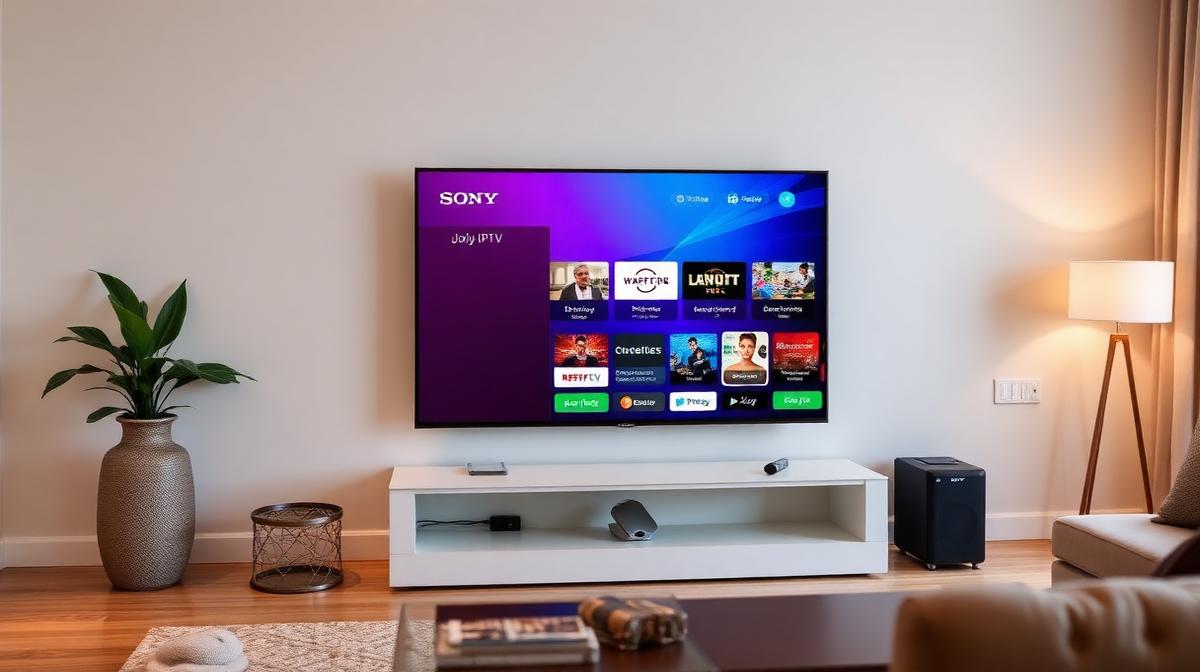
Sony Bravia Smart TVs are the best Smart TVs for IPTV. They run Android TV or Google TV. This gives you full access to the Google Play Store. You can install TiviMate and other top IPTV apps directly. No sideloading needed. If you are new to streaming, check our complete guide on how IPTV works.
📌 Disclaimer
Why Is Sony Bravia the Best TV for IPTV?
Sony Bravia runs Android TV or Google TV. This is the same system used on the Nvidia Shield. It gives you full access to all Android IPTV apps.
Unlike Samsung (Tizen) and LG (WebOS), Sony Bravia supports the Google Play Store. This means you can install TiviMate, IPTV Smarters, and dozens of other apps. No workarounds required.
Sony's picture quality is also excellent. With Dolby Vision, HDR10, and Dolby Atmos, your IPTV streams look and sound amazing. Pair it with one of the top-rated IPTV providers for the best experience.
✅ Why Sony Bravia for IPTV
- Full Google Play Store — install any Android IPTV app
- TiviMate works natively — the #1 rated IPTV player
- Dolby Vision + Atmos for premium streaming quality
- Google Assistant voice search built-in
- Chromecast built-in for casting from phone
⚠️ Things to Know
- Some older models may have slower processors
- Android TV can use more RAM than Tizen or WebOS
- Premium Sony TVs are more expensive than competitors
What Do You Need to Get Started?
Sony Bravia setup is the simplest of all Smart TVs. Here is what you need.
✅ Requirements:
- 📺 Sony Bravia Smart TV — Android TV or Google TV model
- 📶 Internet connection — 25 Mbps for HD, 50+ Mbps for 4K
- 📧 IPTV subscription — From a trusted IPTV service
- 📱 Google account — Already set up on your Sony TV
- 🔗 M3U URL or login details — From your IPTV provider
💡 Speed Check
Method 1: Install from Google Play Store
This is the easiest method. The Google Play Store has all the best IPTV apps. No technical knowledge needed.
Open Google Play Store
Search for Your IPTV App
Install the App
Add Your IPTV Service
Open the app and add your IPTV service. Enter either:
- Xtream Codes API — Server URL, username, password
- M3U URL — Paste your full playlist link
Start Watching
This method works for 99% of users. Sony Bravia's Android TV platform makes IPTV installation as easy as installing any app on your phone.
Method 2: Sideloading Apps (Advanced)
Sideloading lets you install apps not in the Play Store. This is rarely needed on Sony Bravia but useful for niche apps.
Enable Unknown Sources
Install Downloader App
Enter the APK URL
Install and Launch
⚠️ Security Reminder
Setting Up TiviMate on Sony Bravia
TiviMate is the best IPTV player for Android TV. Sony Bravia is the only major Smart TV brand that supports it natively.
Install TiviMate
Add a Playlist
Set Up EPG
Customize Your Experience
TiviMate lets you:
- Create favorites and channel groups
- Set up recording (premium)
- Customize the EPG layout
- Enable catch-up TV if your provider supports it
TiviMate paired with a provider like CatchOn TV or VOD Streaming delivers a premium viewing experience. The combination of Sony's picture quality and TiviMate's interface is hard to beat.
Best IPTV Apps for Sony Bravia
Sony Bravia supports the widest range of IPTV apps. Here are the best options.
| Feature | TiviMate | IPTV Smarters | OTT Navigator |
|---|---|---|---|
Play Store | |||
EPG Guide | |||
Recording | Premium | ||
Multi-Playlist | |||
4K HDR | |||
Best For | Overall Best | Easy Setup | Power Users |
TiviMate is the clear winner. It has the fastest channel switching, the best EPG, and a beautiful interface. It is the #1 reason many people choose Sony Bravia over Samsung or LG for IPTV.
Troubleshooting Sony Bravia IPTV Issues
Sony Bravia is reliable for IPTV. But here are fixes for the rare issues you might encounter.
App Not Found in Play Store
- Make sure your TV is signed into a Google account
- Check your country/region settings
- Try searching the exact app name
- Use the sideloading method as a backup
Buffering During Live Streams
- Connect via Ethernet instead of WiFi
- Close background apps — go to Settings → Apps → See all apps
- Lower stream quality to 720p temporarily
- Check if other devices are using bandwidth
Audio Out of Sync
- Change the audio decoder in your IPTV app settings
- Switch between Hardware and Software decoding
- Update the IPTV app to the latest version
💡 Performance Tip
Frequently Asked Questions
Final Tips for Sony Bravia IPTV
Get the most out of IPTV on your Sony Bravia with these tips.
🎯 Pro Tips:
- ✅ Use TiviMate for the best IPTV experience on Sony
- ✅ Connect via Ethernet for stable 4K streaming
- ✅ Enable Dolby Vision in TV settings for HDR content
- ✅ Use Google Assistant voice commands to find channels
- ✅ Start with a free trial to test your provider
- ✅ Keep your TV firmware updated for best compatibility
Sony Bravia is the top Smart TV choice for IPTV users. The full Google Play Store access, TiviMate support, and premium picture quality set it apart. For live sports, check our best IPTV for sports guide.
📝 Article Summary
- Sony Bravia runs Android TV / Google TV with full Play Store access
- TiviMate is the best IPTV player and works natively on Sony
- Install apps in minutes from the Google Play Store — no sideloading needed
- Supports 4K HDR with Dolby Vision and Atmos
- Use wired Ethernet for stable, buffer-free streaming
🔥 Find the Perfect IPTV Provider for Sony Bravia
Compare the top 20 tested IPTV services and find one for your Sony TV
Explore Top ProvidersFind the Right IPTV Provider
Our expert team has reviewed and ranked the top 20 IPTV services for 2026. Compare features, pricing, and performance to make an informed decision.
Independent reviews • Updated for 2026
Written by
IPTV Reviews Team
Our team of streaming experts is dedicated to helping you find the best IPTV solutions. With years of experience in the industry, we provide in-depth guides, reviews, and tutorials.
You Might Also Like
How to Install IPTV on Firestick: Step-by-Step
Complete guide to installing and setting up IPTV on Amazon Firestick in just 5 minutes.
What is IPTV Service? Complete Guide 2026
Learn everything about IPTV services, how they work, and why they are the future of television streaming.
4K Live IPTV Review: Ultra HD Streaming in 2026
4K Live IPTV review covering true 4K and HDR streaming, 16,500+ channels, home theater optimization, and pricing. Is premium picture quality worth it?