Formuler Z Series IPTV Setup: MYTVOnline 2 Guide
Complete Formuler Z setup guide using MYTVOnline 2. Covers Xtream Codes and M3U methods for Z10, Z11 Pro, and Z11 Pro Max.
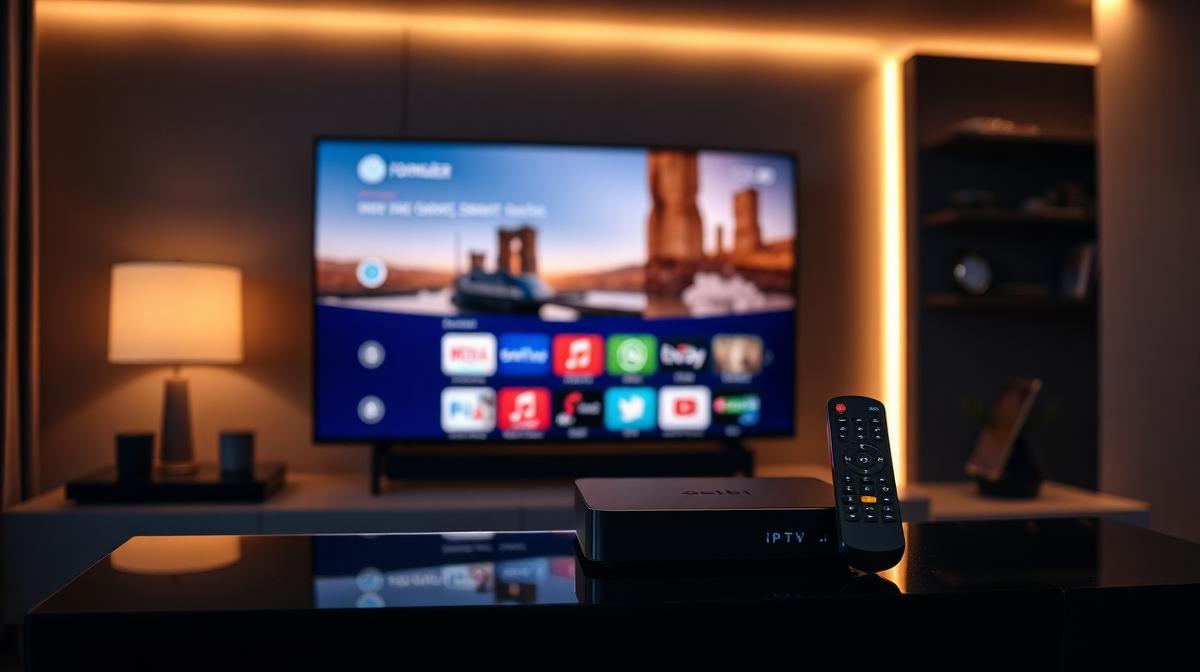
Formuler Z series boxes run the MYTVOnline 2 app — one of the best IPTV interfaces available. Setup takes about 5 minutes. This guide covers Xtream Codes and M3U playlist methods. New to IPTV? Read our complete beginner's guide first.
🔑 Key Takeaways
- Formuler Z boxes use the MYTVOnline 2 app — pre-installed
- Supports Xtream Codes API and M3U playlist connections
- Setup takes about 5 minutes with your provider credentials
- Built-in EPG, catch-up TV, and favorites management
- Android-based — also supports TiviMate and other apps
📌 Disclaimer
What Is the Formuler Z Series?
Formuler is a Canadian brand that makes premium IPTV set-top boxes. The Z series runs Android TV. It comes pre-loaded with MYTVOnline 2 — a polished IPTV player designed specifically for Formuler hardware.
Unlike a basic Firestick, Formuler boxes offer a TV-optimized remote, faster channel switching, and built-in catch-up TV. They're popular with serious IPTV users who want the best interface.
Since Formuler runs Android, you can also install third-party apps like TiviMate and IPTV Smarters. But MYTVOnline 2 is the main reason people buy Formuler.
✅ Formuler Z Advantages
- MYTVOnline 2 — best-in-class IPTV interface
- Android-based — supports third-party apps
- Fast channel switching and zapping
- Built-in catch-up TV and recording
- Bluetooth voice remote included
- Regular firmware updates from Formuler
⚠️ Formuler Z Limitations
- Higher price than Firestick ($100–180)
- MYTVOnline 2 is exclusive to Formuler
- Limited availability in some regions
- Requires a separate IPTV subscription
Formuler Z Models Compared
Formuler offers several Z series models. Here's how the current lineup compares.
| Feature | Z10 SE | Z10 Pro | Z11 Pro | Z11 Pro Max |
|---|---|---|---|---|
Resolution | 4K | 4K HDR | 4K HDR | 4K HDR10+ |
RAM | 2 GB | 2 GB | 4 GB | 4 GB |
Storage | 8 GB | 16 GB | 32 GB | 32 GB |
Wi-Fi | Dual-band | Dual-band | Wi-Fi 6 | Wi-Fi 6E |
Bluetooth Remote | ||||
MYTVOnline 2 | ||||
Price Range | $90–110 | $120–140 | $150–170 | $170–190 |
💡 Which Formuler to Buy?
MYTVOnline 2 Initial Setup
MYTVOnline 2 is pre-installed on every Formuler Z box. The first time you open it, you'll see a setup wizard. Here's how to complete it.
Power On and Connect
Connect HDMI and power cables. Turn on the Formuler box. Complete the Android initial setup (language, Wi-Fi, time zone).
Open MYTVOnline 2
From the home screen, select MYTVOnline 2. It launches automatically on first boot on some models.
Choose Connection Type
MYTVOnline 2 asks how you want to add your IPTV service:
- Xtream Codes API — Recommended method (username, password, server URL)
- M3U Playlist — Alternative method (paste M3U URL)
- Stalker Portal — For MAG-style portal connections
Don't have an IPTV provider yet? Check our ranking of the best 20 IPTV services to find one that suits your needs.
Method 1: Adding IPTV via Xtream Codes
Xtream Codes is the recommended connection method. It gives you the best EPG support, catch-up TV, and channel management.
Select Xtream Codes API
Enter Your Credentials
Fill in the three fields your provider gave you:
- Server URL:
http://provider.com:port - Username: Your IPTV username
- Password: Your IPTV password
Name Your Connection
Wait for Channel Loading
MYTVOnline 2 connects to the server. Channels, EPG, and VOD load automatically.
🎉 Done! Start browsing your channels.
💡 Where to Find Your Credentials
Method 2: Adding IPTV via M3U Playlist
If your provider doesn't support Xtream Codes, use an M3U URL instead. This method works with all IPTV providers.
Select M3U Playlist
Enter Your M3U URL
Paste the M3U URL from your provider. It usually looks like:
http://provider.com/get.php?username=xxx&password=xxx&type=m3u_plus
Add EPG URL (Optional)
Save and Load
Optimizing Your Formuler Z Box
These settings improve your viewing experience. Apply them after the initial setup.
Channel Favorites
- Long-press OK on any channel to add it to favorites
- Create custom groups (Sports, Movies, News)
- Access favorites from the FAV button on the remote
EPG Display Settings
- Go to Settings → EPG → Time Offset
- Adjust the offset to match your timezone
- Enable Auto EPG Update for the latest program data
Catch-Up TV
- MYTVOnline 2 supports catch-up TV on supported channels
- Look for channels marked with a clock icon
- Go back up to 7 days on supported channels
Video & Audio
- Set output resolution to match your TV (1080p or 4K)
- Enable hardware decoding for smoother playback
- Set audio output to HDMI passthrough for surround sound
💡 Install Additional Apps
Troubleshooting Common Issues
Here are fixes for the most common Formuler Z box problems.
"Connection Failed" Error
- Check your server URL, username, and password for typos
- Make sure your subscription is active
- Try switching between Xtream Codes and M3U methods
- Restart the Formuler box
Buffering During Playback
- Use a wired Ethernet connection for stability
- Test your internet speed — you need 25+ Mbps for HD
- Clear the MYTVOnline 2 cache in Settings
- Lower the stream quality in player settings
Missing Channels
- Refresh the channel list in MYTVOnline 2 settings
- Check if your provider updated their server URL
- Contact your IPTV provider's support team
Remote Not Pairing
- Hold the Home + Back buttons for 5 seconds to enter pairing mode
- Go to Settings → Bluetooth on the Formuler box
- Select the remote from the Bluetooth device list
Frequently Asked Questions
🔥 Find the Best IPTV Provider for Formuler Z
Compare 20 tested IPTV services with Xtream Codes and M3U support.
View Provider Rankings📝 Article Summary
- Formuler Z boxes use MYTVOnline 2 — a premium pre-installed IPTV app
- Xtream Codes API is the best connection method for EPG and catch-up TV
- M3U playlists work as an alternative for all providers
- The Z11 Pro is the best current model for most users
- Since it runs Android, you can also install TiviMate and other apps
Find the Right IPTV Provider
Our expert team has reviewed and ranked the top 20 IPTV services for 2026. Compare features, pricing, and performance to make an informed decision.
Independent reviews • Updated for 2026
Written by
IPTV Reviews Team
Our team of streaming experts is dedicated to helping you find the best IPTV solutions. With years of experience in the industry, we provide in-depth guides, reviews, and tutorials.
You Might Also Like
How to Install IPTV on Firestick: Step-by-Step
Complete guide to installing and setting up IPTV on Amazon Firestick in just 5 minutes.
Best IPTV Apps for Android TV in 2026
Top 5 IPTV apps for Android TV compared. TiviMate, IPTV Smarters, Perfect Player, OTT Navigator, and XCIPTV tested for speed and features.
Best IPTV Service Providers (2026) — Top 20 Tested
Discover the top 20 IPTV providers in 2026. Compare features, pricing, and channels. Find the perfect streaming service for your needs. Updated reviews.