IPTV on Chromecast: Complete Casting Guide (2026)
How to watch IPTV on Chromecast. Google TV apps, phone casting, and PC browser casting methods. Works on all Chromecast models.
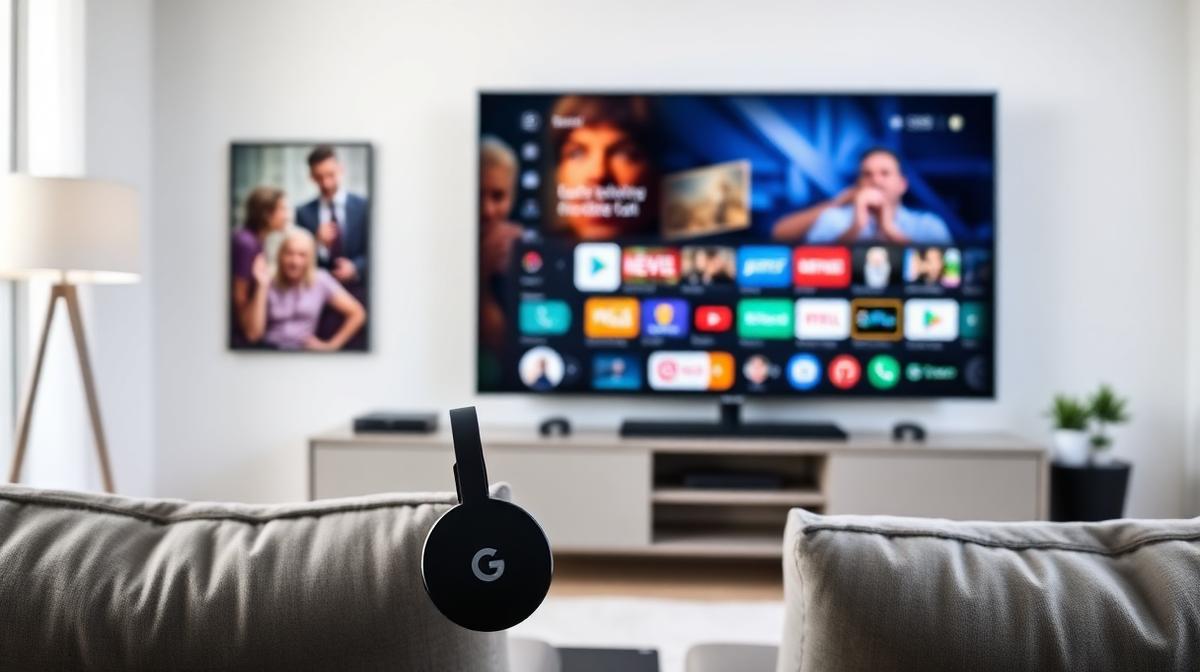
Chromecast is one of the easiest ways to watch IPTV on your TV. You can cast IPTV from your phone, tablet, or computer. The newer Chromecast with Google TV also runs Android TV apps directly. This guide covers every method. If you're new to streaming, read our complete IPTV guide first.
🔑 Key Takeaways
- Chromecast with Google TV supports IPTV apps natively (TiviMate, Smarters)
- Older Chromecast models can cast IPTV from your phone or PC
- Google TV version is best — it runs full Android TV apps
- Cast from any device using BubbleUPnP or Web Video Caster
- Setup takes 5–10 minutes depending on your method
📌 Disclaimer
Can You Use IPTV on Chromecast?
Yes. All Chromecast models support IPTV. The method depends on which Chromecast you have. The Chromecast with Google TV runs apps directly. Older models require casting from another device.
Chromecast is an affordable way to stream IPTV. At $30–50, it costs less than a Firestick or dedicated BuzzTV box. The Google TV model is the best value since it runs the same Android TV IPTV apps as higher-end devices.
✅ Chromecast IPTV Pros
- Affordable — $30–50 for Google TV model
- Google TV runs TiviMate, Smarters, and more
- Cast from phone, tablet, or PC
- Compact — plugs directly into TV HDMI
- 4K HDR support on Google TV model
- Voice remote with Google Assistant
⚠️ Chromecast IPTV Cons
- Older models need a phone to control
- No Ethernet port (requires USB-C adapter)
- Limited storage — 8 GB on most models
- Casting can introduce slight delay
Chromecast Models Compared
The Chromecast with Google TV is the best choice for IPTV. Here's how all models compare.
| Feature | Chromecast 3 | Chromecast Ultra | Google TV HD | Google TV 4K |
|---|---|---|---|---|
Max Resolution | 1080p | 4K | 1080p | 4K HDR |
Android TV Apps | ||||
Remote Control | ||||
Ethernet | ||||
Cast from Phone | ||||
Price | $30 | Discontinued | $30 | $50 |
💡 Best Chromecast for IPTV
Method 1: Apps on Chromecast with Google TV (Best)
If you have a Chromecast with Google TV, you can install IPTV apps directly. This is the best method. It works like a Firestick or Android TV box.
Open Google Play Store
Install an IPTV App
Search for and install one of these apps:
- TiviMate — Best overall IPTV player
- IPTV Smarters Pro — Easy setup with Xtream Codes
- OTT Navigator — Feature-rich with EPG
- XCIPTV — Clean interface with M3U support
Enter Your IPTV Credentials
Open the app and enter your provider's details:
- Xtream Codes: Server URL, username, password
- M3U URL: Your playlist link
Don't have a provider? Check the best IPTV providers for 2026.
Start Watching
Channels load in under a minute. Browse by category, search, or use the EPG.
🎉 Done! Full IPTV experience on your TV.
💡 Sideloading Apps
Method 2: Cast from Phone or Tablet
This method works with every Chromecast model. Install an IPTV app on your phone and cast the video to your TV. Your phone becomes the remote control.
Install an IPTV App on Your Phone
Download one of these from the App Store or Google Play:
- IPTV Smarters Pro — built-in Chromecast support
- GSE Smart IPTV — supports both iOS and Android
- Web Video Caster — cast any video URL
- BubbleUPnP — advanced casting features
Add Your IPTV Service
Tap the Cast Icon
Look for the Cast icon (rectangle with Wi-Fi waves) in the app. Tap it and select your Chromecast.
Both devices must be on the same Wi-Fi network.
Play a Channel
Select a channel on your phone. The video plays on your TV through Chromecast.
🎉 Streaming! Use your phone to change channels.
Method 3: Cast from PC Browser
You can cast IPTV from Google Chrome on your computer. This works with any Chromecast model and any IPTV web player.
Open Chrome Browser
Go to Your IPTV Web Player
Cast the Tab
Click the three-dot menu in Chrome → Cast → select your Chromecast.
Choose "Cast tab" for the web player, or "Cast screen" for your entire desktop.
Watch on Your TV
⚠️ Tab Casting Quality
Best IPTV Apps for Chromecast
These apps work best with Chromecast devices. The Google TV models run all of them natively. For older models, use apps with built-in cast support on your phone.
| App | Google TV | Cast Support | EPG | Free |
|---|---|---|---|---|
TiviMate | Freemium | |||
IPTV Smarters | Free | |||
GSE Smart IPTV | Free | |||
Web Video Caster | Free | |||
OTT Navigator | Freemium |
For a deeper comparison, read our full Android TV IPTV apps guide. All apps listed there work on Chromecast with Google TV.
Optimizing Chromecast for IPTV
These tips ensure smooth IPTV streaming on Chromecast.
Network Optimization
- Place Chromecast close to your Wi-Fi router
- Use the 5 GHz band for faster, less congested Wi-Fi
- For the most stable connection, use a USB-C to Ethernet adapter
- You need 25 Mbps+ for HD, 50 Mbps+ for 4K
Storage Management (Google TV)
- Google TV has only 8 GB storage — install only essential apps
- Clear app cache regularly: Settings → Apps → See All → Clear Cache
- Disable automatic updates for apps you don't use
Power Supply
- Use the included power adapter — USB ports on TVs often don't provide enough power
- Insufficient power causes buffering and restarts
Also check our setup guides for Roku, Apple TV, and Samsung Smart TV if you have multiple devices. Compare IPTV vs cable TV to see your potential savings.
Troubleshooting Common Issues
Quick fixes for the most common Chromecast IPTV problems.
Chromecast Not Found
- Ensure both devices are on the same Wi-Fi network
- Restart your Chromecast by unplugging it for 10 seconds
- Update the Google Home app on your phone
- Disable VPN on your phone (VPN can block casting)
Buffering During Casting
- Move closer to your Wi-Fi router
- Switch from 2.4 GHz to 5 GHz Wi-Fi
- Close other apps using bandwidth on your network
- Use the included power adapter — not the TV USB port
App Won't Install (Google TV)
- Free up storage: Settings → Apps → See All → Uninstall unused apps
- Clear Google Play Store cache
- Sideload the app using the Downloader app
Audio Out of Sync
- Try a different audio output setting in the IPTV app
- Switch from surround sound to stereo
- Restart the Chromecast
Frequently Asked Questions
📝 Article Summary
- Chromecast with Google TV runs IPTV apps natively — best option
- Older Chromecast models work by casting from phone or PC
- TiviMate, IPTV Smarters, and GSE Smart IPTV all work great
- Use 5 GHz Wi-Fi and the included power adapter for best results
- Google TV 4K model at $50 is the best budget IPTV device
🔥 Find the Best IPTV Provider for Chromecast
Compare the top 20 IPTV services tested and ranked for 2026.
See Full RankingsFind the Right IPTV Provider
Our expert team has reviewed and ranked the top 20 IPTV services for 2026. Compare features, pricing, and performance to make an informed decision.
Independent reviews • Updated for 2026
Written by
IPTV Reviews Team
Our team of streaming experts is dedicated to helping you find the best IPTV solutions. With years of experience in the industry, we provide in-depth guides, reviews, and tutorials.
You Might Also Like
How to Install IPTV on Firestick: Step-by-Step
Complete guide to installing and setting up IPTV on Amazon Firestick in just 5 minutes.
Best IPTV Apps for Android TV in 2026
Top 5 IPTV apps for Android TV compared. TiviMate, IPTV Smarters, Perfect Player, OTT Navigator, and XCIPTV tested for speed and features.
Best IPTV Service Providers (2026) — Top 20 Tested
Discover the top 20 IPTV providers in 2026. Compare features, pricing, and channels. Find the perfect streaming service for your needs. Updated reviews.